
UTM tracking tells Google Analytics who sent each visit to your Shopify store. Without it, your newsletter, your Instagram bio and the card in your parcels can look as if they bring in nothing, because their visits get filed as Direct, Referral or Unassigned.
At a UK store I worked with, the newsletter links had no tags. In one December, Google Analytics counted 1,148 email visits as Referral and credited them to the email platform’s link-tracking address. Email looked as if it did nothing.
This article covers what the tags mean, how Google Analytics reads them, the naming rules I use, and two free ways to make each link in seconds.
What UTM tracking is
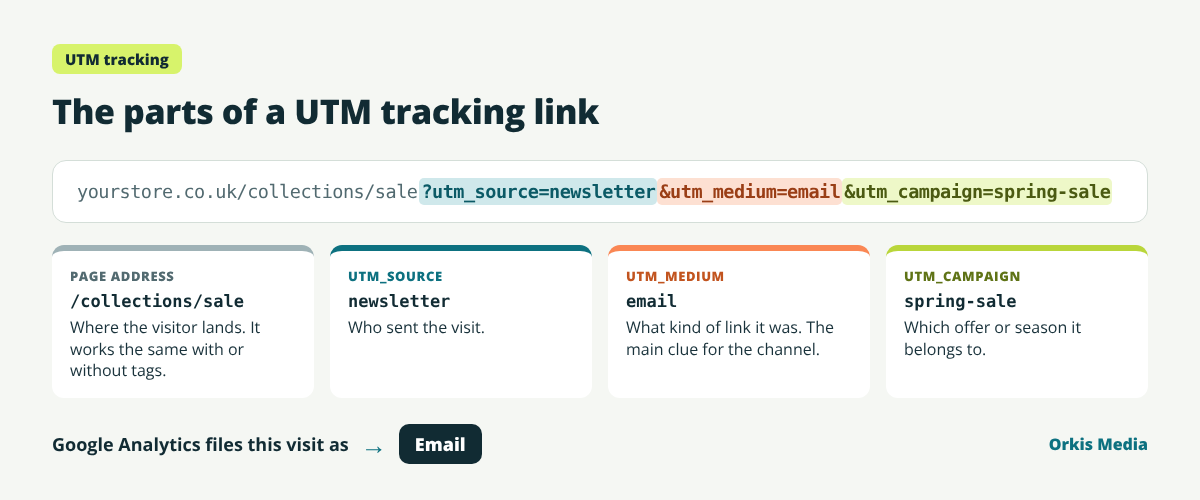
A UTM link is an ordinary link with a few tags added to the end. The tags are called UTM parameters, and some people call them UTM codes. UTM stands for Urchin Tracking Module (Shopify Help Centre).
The visitor lands on the same page either way. With UTM tracking, Google Analytics reads the tags and files the visit, and any sale it brings, under the channel you meant.
The UTM parameters you need
Google Analytics supports nine UTM parameters, but Google says you should always use three: source, medium and campaign (Google Analytics Help). Two more are worth knowing.
| Parameter | What it says | Examples |
|---|---|---|
utm_source |
Who sent the visit | newsletter, facebook, insert |
utm_medium |
What kind of link it was | email, social, print |
utm_campaign |
Which offer or season | spring-sale, black-friday |
utm_content (optional) |
Which link, when one email or post has several | header-button, footer-link |
utm_term (optional) |
The paid search keyword | Mainly used for ads |
Leave one of the three out and Google Analytics shows “(not set)” in its place. Values are also case sensitive: Google treats utm_source=Facebook and utm_source=facebook as two different sources, and recommends lower case (Google Analytics Help).
How Google Analytics files a UTM link
The medium is the main clue. Google Analytics checks each tagged visit against its default channel rules, so the word you choose decides which row the sale appears in. These are the mediums I use, and the channel each one lands in:
| utm_medium | Filed as | Google’s rule |
|---|---|---|
email |
Source or medium is email, e-mail, e_mail or “e mail” | |
social |
Organic Social | Medium is social, social-network, social-media, sm, “social network” or “social media”, or the source is a social site |
paid-social |
Paid Social | Source is a social site, such as facebook, and the medium starts with “paid”, contains “cp”, or is ppc or retargeting |
affiliate |
Affiliates | Medium is affiliate |
referral |
Referral | Medium is referral, app or link |
sms |
SMS | Source or medium is exactly sms |
print |
Unassigned | No rule matches |
Source: Google Analytics Help, default channel group.
That last row catches people out. Google Analytics has no offline channel, so a QR code with the medium print lands in Unassigned. Create a custom channel group with an Offline channel for the medium print. A standard property allows two custom channel groups, and they apply to past data too (Google Analytics Help).
A naming guide for email, social and print
The rules matter more than the words you pick, because UTM tracking only works if every link uses the same words. These are mine:
- Lower case, always. “Email” and “email” become two rows in your reports.
- Hyphens, not spaces. spring-sale, not “spring sale”.
- Source is the place, medium is the type. newsletter and email, instagram and social, insert and print.
- One campaign name per offer or season, used on every link that promotes it.
- Write the list down, and use the same words every time, whoever makes the link.
Here is a starting list you can copy:
| Where the link appears | utm_source | utm_medium | utm_campaign |
|---|---|---|---|
| Newsletter | newsletter | spring-sale | |
| Abandoned cart email | cart-email | cart-reminder | |
| Facebook post | social | spring-sale | |
| Instagram bio link | social | bio-link | |
| Facebook or Instagram ad | paid-social | spring-sale | |
| Packaging insert QR code | insert | thank-you-card |
UTM for email campaigns
Tag every link in every email: the newsletter, and the welcome, abandoned cart and after-purchase emails too. The automated ones send visitors every day, and they’re easy to forget because you set them up once. Some email platforms can add tags for you, so check the links in one sent email before you add your own, or a link can end up with two sets.
Social posts and bios
Tag the link in your Instagram and Facebook bios, and in every post that links to your store. Keep paid-social for ads, so free and paid social stay apart in your reports. Check whether your ad platform tags its links for you first.
Print and QR codes
For a QR code, put the full tagged link into the QR code maker, not your plain web address. The tags travel inside the code. Give each print run its own campaign name, such as thank-you-card or christmas-flyer, so you can compare them, and add the Offline channel above so those visits don’t sit in Unassigned.
How to generate a UTM link
You don’t need to type tags by hand. There are two free ways to generate a UTM link.
Google’s Campaign URL Builder. Google Analytics Help links to its own Campaign URL Builder. Type the page address, source, medium and campaign, and it gives you the tagged link to copy. It’s a handy UTM campaign builder for the odd link, but your naming list has to live somewhere else.
My tracking tag sheet. This is a free UTM builder in Excel. Type where the link will appear, the page address and the three tags. It turns them into lower case with hyphens, checks the medium against your naming list, shows which channel the visit will be filed under, and keeps a record of every UTM tracking link you make. It comes free with my Shopify traffic guide.
Test every new UTM tracking link before you use it: open it in a private browser window, then check that the Realtime report in Google Analytics shows the visit with your source and medium.
Where to see your results in Google Analytics and Shopify
In Google Analytics, open Reports, then Acquisition, then Traffic acquisition. Change the dimension in the first column to Session source / medium, or Session campaign, to see your UTM tracking tag by tag.
In Shopify, the marketing reports in Analytics include Sessions attributed to marketing campaigns and Sales attributed to marketing. Both count efforts tagged with UTM parameters, and show the UTM campaign name (Shopify Help Centre). Shopify’s Campaigns feature, under Growth in your admin, can also match sessions to a campaign by its UTM values and break sales down by UTM parameter (Shopify Help Centre). Together, they’re your Shopify UTM report.
Expect Shopify and Google Analytics to show different numbers. They count visits in different ways (Shopify Help Centre), so compare each one with itself over time rather than with the other.
Four mistakes that break UTM tracking
- Tagging links between your own pages. Tags are for links that bring people in from somewhere else. A tag on a link from your homepage to a collection can take the credit for a sale away from the channel that really brought the visitor.
- Mixed spellings. Facebook, facebook and fb become three sources. Stick to your list.
- Doubling up on ad links. Some ad platforms tag their links automatically. Check before you add your own.
- Renaming halfway through. Change a campaign name mid-campaign and its results split across two rows.
Start with your email links, then your bio links, then anything printed. Once every link you control is tagged, UTM tracking shows you which channels bring sales, not just visits, and that’s the figure to plan your next month on.
Get the free tag sheet. It comes with my Shopify traffic guide, along with a channel scorecard and a 30-day traffic plan.
Would you rather I checked your tracking? See my Shopify and eCommerce SEO services or request a free store assessment.
 I’m Steve Bruckshaw. I’ve worked in digital marketing since 2002 and built online stores for more than 23 years on Joomla, Magento, WooCommerce and Shopify. I run Orkis Media from Branston in Staffordshire.
Sources
- Google Analytics Help: URL builders, default channel group, custom channel groups, and Google’s Campaign URL Builder
- Shopify Help Centre: marketing reports, understanding campaigns, report discrepancies
- Checked October 2026. Screens and rules change, so check the page before you rely on it.